If you’ve got some lovely data but the bit you need is surrounded by other text, use LEFT or MID or RIGHT to extract out the part you need automatically. Some quick examples below.
LEFT
If the text you need is always on the left hand side of the cell and exactly the same length
Type in =LEFT(
- Then point to the cell from which you want to extra data “text”
- Then indicate the number of characters to extract “[num_chars]”
- Then close bracket and hit enter

In the below example it is =LEFT(A2,4)
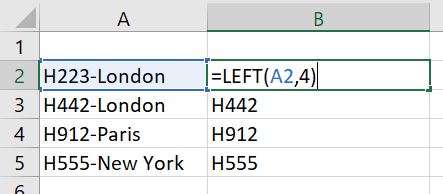
Tip: If the data you need to extract is not of the same length all the way down your dataset, check if there’s a common character or word you can reference. In the above example it’s hyphen “-” but it might be @ or a number or a letter. If there is something easy to use, use the FIND formula to find that common character, then for the [num_chars] part of the LEFT formula you can use the result of FIND then minus the number of characters you need to. For example above we would use =LEFT(A2,FIND(“-“,A2)-1) which would obtain the same result and keep the formula dynamic.
MID
MID works in a similar way to LEFT. However this time you can also reference the character to start from.
In the below example I am using FIND to first find the hyphen (“-“) then I’m adding 1 to that number so the start number will always be the character to the right of the hyphen.

Right
Right is also similar to LEFT but this time it will return the specified number of characters from the right hand side of the text. In the below example I am extracting just the last character.

And that’s a quick summary of Left, Mid and Right. You may need to get creative with using these alongside LEN and FIND formulas so that your formula works all the way down your dataset so be careful to check the pattern expected are consistent all the way down your dataset. If not you may need to manually tidy up rogue data first, or write a formula with the right combination to get the result you want. Know your data!
