Working with a colleague recently I noticed when locking formulas in Excel he was using the Function (“Fn”) key every single time to access the automatic dollar signs to lock a cell reference in a formula. “Woah” I said, “why are you doing that? Do you know how to lock the function key?”. Turns out something I thought was second nature to everyone was only second nature to me! It’s amazing how the little things I take for granted open up a whole new world for another. So that’s why I’m here telling you the secret to locking the Function key.
Now this won’t work for everyone, it depends on your keyboard set up, but I will talk you through mine.
Instead of having to hold down the “Fn” key to use for example F4 (locking cell references) or F9 (recalculate) in Excel, you can programme your keyboard to lock in Fn so it’s always on – caveat of this is of course that if you want to use the other symbols such as brightness or volume you’ll have to turn it the Function key lock off again or hold Fn for those instead – so you’ll have to decide what you use more – Fn in Excel or screen brightness and volume?! (Difficult life question for some…).
Here’s a picture of my keyboard
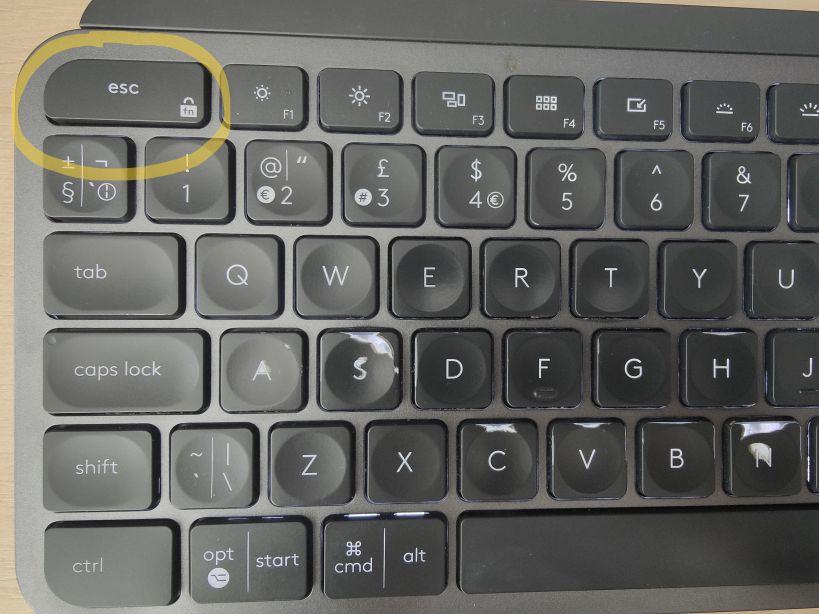
Notice the “esc” key in the top left has a little Padlock in the corner with “fn” written in it? This means, on my keyboard at least (yours may be elsewhere) this key holds the secret to locking down the Function key.
Hold the Function key (“fn” on my keyboard in the bottom right) and then hold the “esc” key. Sometimes you might here a ping or see a notification on your screen depending on your set up (mine doesn’t make any such indication it worked so don’t worry if not!).

This should have now locked down your Function key.
Next try it out in your formula – instead of holding down the Fn key first, just hit the relevant F key as you require and see if it’s worked.
My colleague said it was eye opening and will be saving him many many many minutes of repetition in his day! Happy to oblige!
